Rclone: An Efficient Tool to Sync Cloud Storage

Managing cloud storage shouldn’t mean being tethered to a bulky web browser or a locked-down proprietary app. Rclone is the ultimate tool for power users who need to manage files across dozens of cloud providers with the speed and flexibility of the command line. Often called the “rsync for cloud storage,” Rclone allows you to sync, move, and encrypt files between your local machine and virtually any major cloud service.
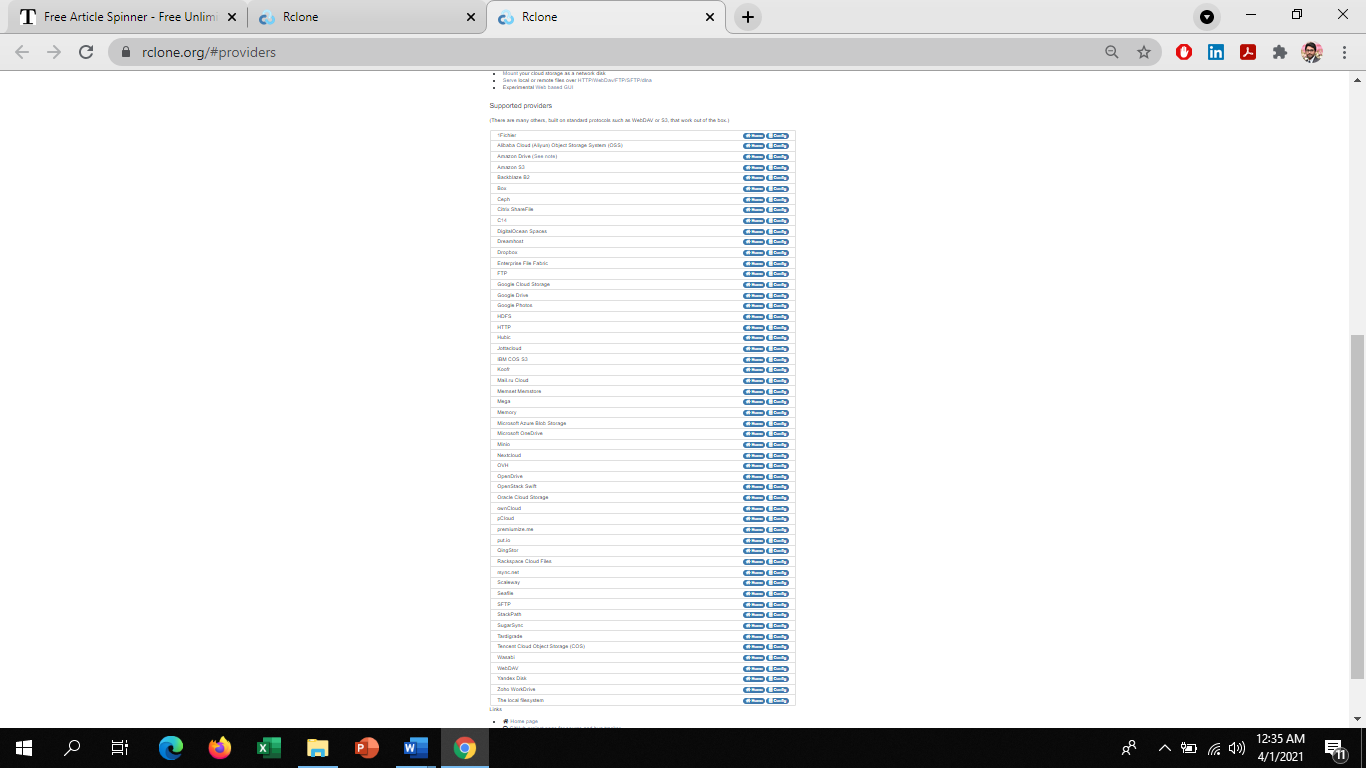
Figure 1: A subset of Rclone’s extensive list of supported cloud providers.
Written in Go, Rclone is a single, static binary with no dependencies. This makes it incredibly easy to deploy on any system. It works seamlessly on high-powered Windows workstations, Linux servers, Macs, or even low-power Raspberry Pi devices. Its open-source nature ensures it stays compatible with the latest API changes from providers like Google, AWS, and Microsoft.

Figure 2: Rclone is built on the high-performance Go language.
Installation and Initial Configuration
Getting started is as simple as running rclone config. This interactive wizard walks you through creating “remotes” (connections to your accounts). While it might look intimidating at first, the defaults are usually exactly what you need.
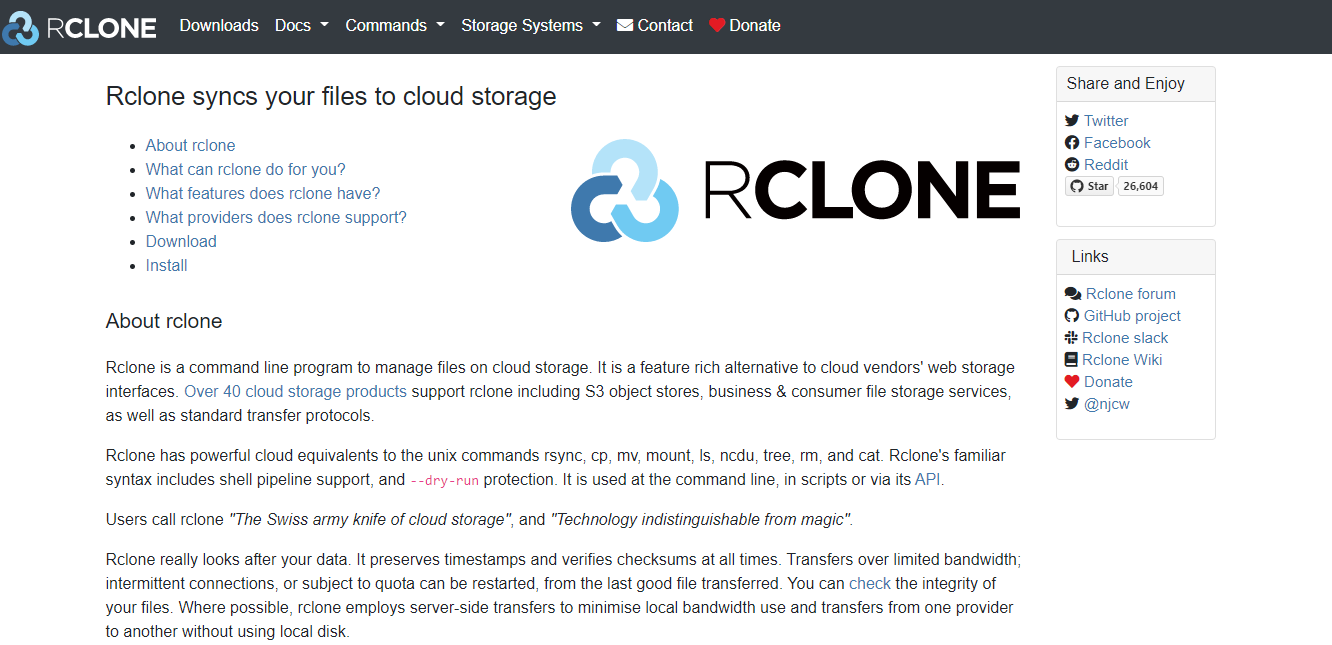
Figure 3: The initial Rclone configuration menu.
In this example, we’ll set up an AWS S3 bucket. The same logic applies to Google Drive, Dropbox, or OneDrive. Simply follow the prompts and paste in your API keys when requested.
$ rclone config
No remotes found - make a new one
n) New remote
s) Set configuration password
q) Quit config
n/s/q> n

name> my_s3_remote
Type of storage to configure.
Choose a number from below, or type in your own value
[...]
XX / Amazon S3 Compliant Storage Providers including AWS, Minio, and Wasabi
   \ "s3"
Storage> s3

Choose your S3 provider.
 1 / Amazon Web Services (AWS) S3
   \ "AWS"
provider> 1

access_key_id> [YOUR_ACCESS_KEY]
secret_access_key> [YOUR_SECRET_KEY]
region> 1

acl> 1 (private)

Remote config
--------------
[my_s3_remote]
type = s3
provider = AWS
access_key_id = XXX
secret_access_key = YYY
region = us-east-1
--------------
y) Yes this is OK
y/e/d> y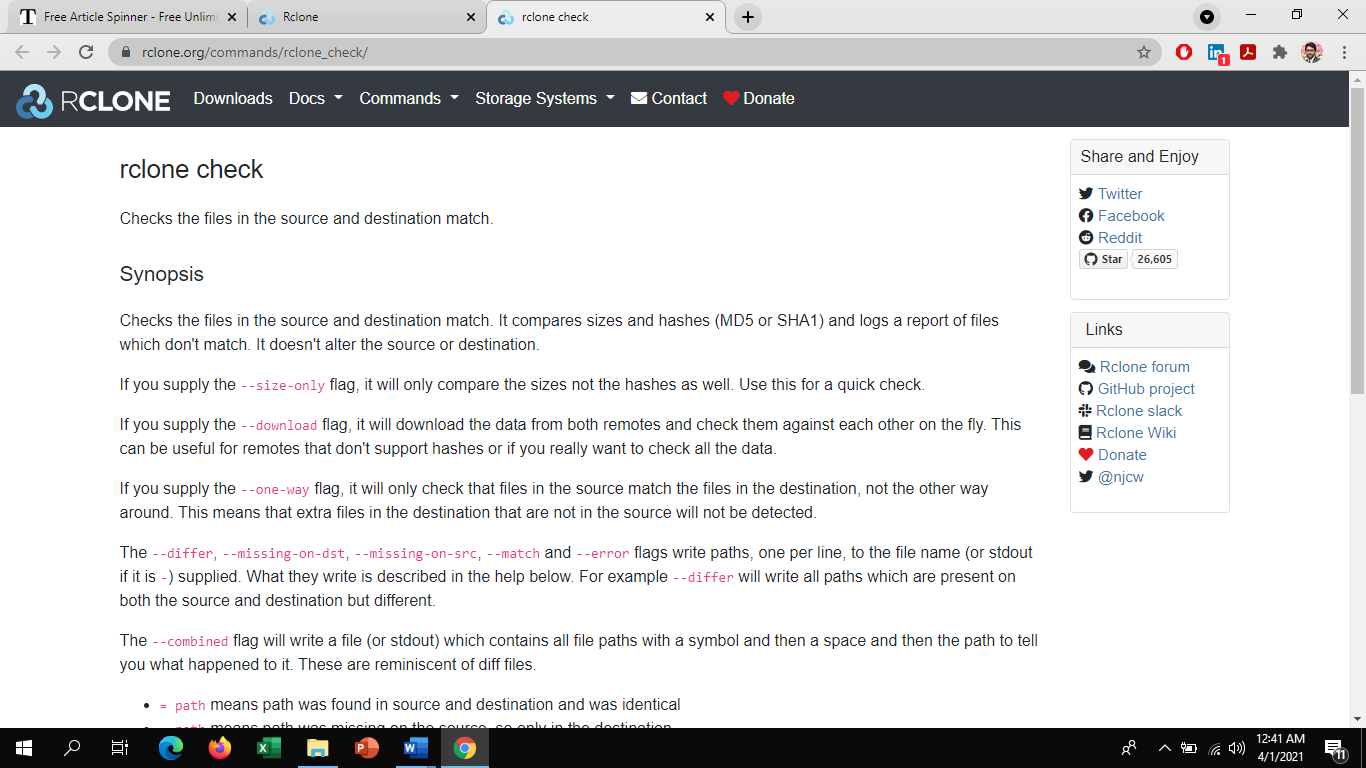
Figure 4: Reviewing your remote configuration properties.
Mastering the Rclone Commands
The beauty of Rclone is its standardized syntax. Once you learn the commands for one provider, you know them for all of them. Here are the essentials for day-to-day operations:
# List all buckets or top-level containers
$ rclone lsd my_remote:

# List all files in a specific container
$ rclone ls my_remote:my_bucket

# Copy a folder from local to cloud (skips existing files)
$ rclone copy /home/user/backups my_remote:my_bucket/backups

# Dynamic Sync: Makes the destination identical to the source
# CAUTION: This deletes files in the destination that are not in the source!
$ rclone sync /home/user/media my_remote:media_backup

# Check integrity: Compare source and destination via md5sum/sha1
$ rclone check /home/user/files my_remote:files
Figure 5: Example of running Rclone commands in the terminal.
Advanced Features: Beyond Simple Copying
Rclone does far more than just shuffling files. It includes powerful functionality for advanced users:
- Crypt (Encryption): You can wrap any remote in a “Crypt” layer. Rclone will encrypt your data locally before it ever touches the cloud. This keeps your privacy intact on providers like Google or Dropbox.
- Mount: You can mount cloud storage as a local network drive. Using
rclone mount remote:path /mnt/cloud, you can browse your S3 bucket in a file explorer like a normal USB drive. For best performance, always use--vfs-cache-mode full. - Bisync: A newer feature that provides true bidirectional synchronization. This allows you to keep two locations in sync regardless of where changes occur.
- Performance Tuning: Use
--transfers 16to move more files simultaneously or--bwlimit 10Mto prevent Rclone from saturating your internet connection.
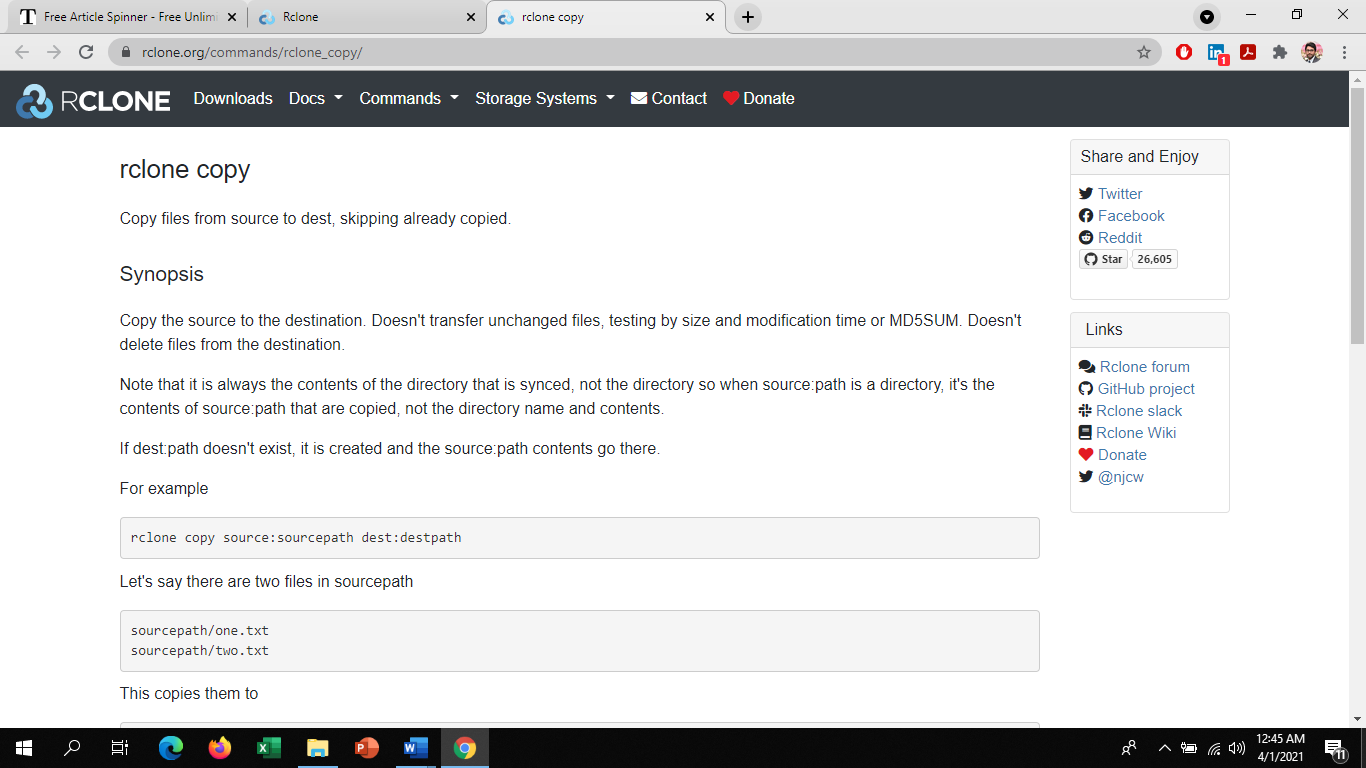
Figure 6: Rclone’s efficient multi-threaded copying logic.
For those who prefer a visual approach, Rclone now includes an experimental Web GUI. Running rclone rcd --rc-web-gui will open a browser interface where you can manage remotes without using the console.
Figure 7: The Rclone Web GUI for visual remote management.
Finally, data safety is built-in. Rclone preserves file timestamps and uses server-side checksums to verify that every byte reached its destination. If a transfer is interrupted by a network failure, Rclone can resume from where it left off, which avoids redundant data usage.
Figure 8: Running a ‘check’ command to verify file integrity.
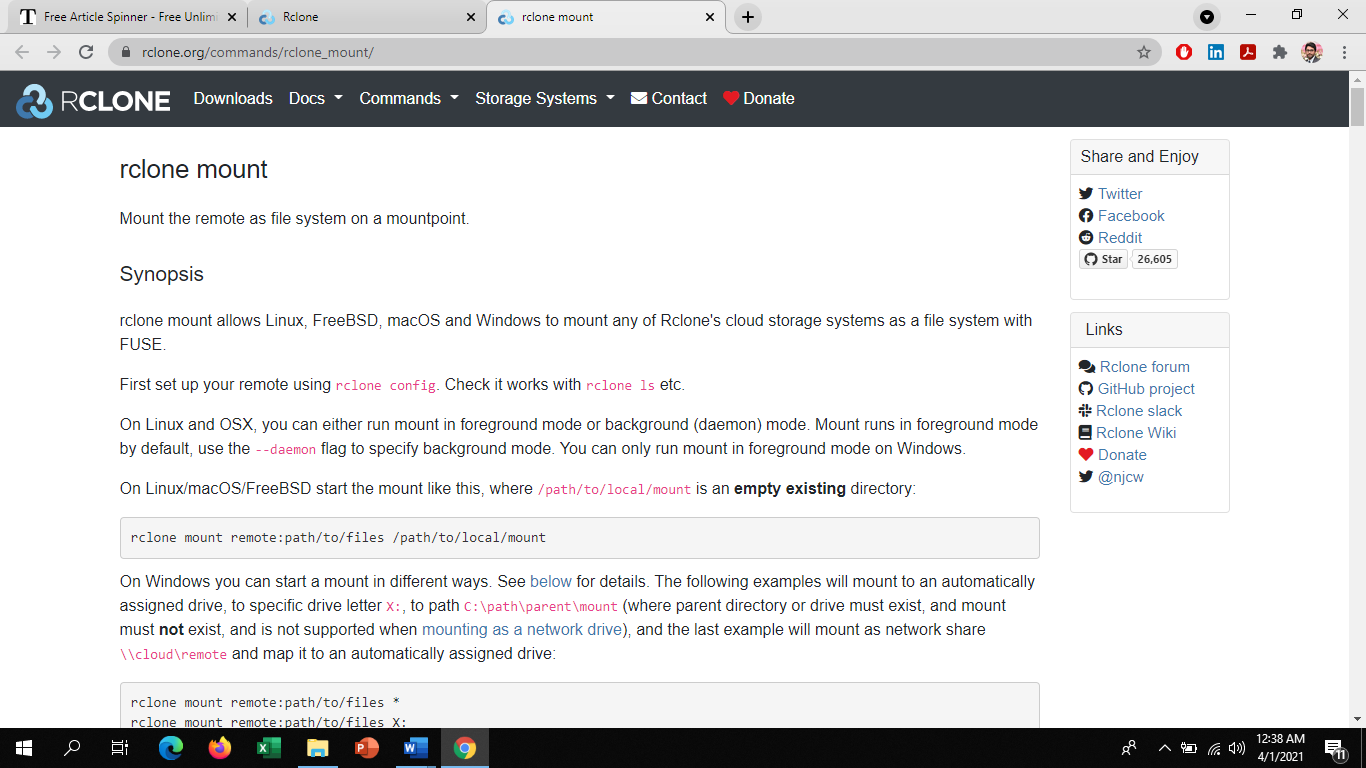
Figure 9: Demonstration of mounting a remote cloud bucket as a local disk.